
Google reviews are one of the easiest ways to show potential customers what others think about your business. By displaying them directly on your WordPress website, visitors can see real customer experiences without leaving the page.
The easiest way to display Google reviews on a WordPress website is to use a Google Reviews widget or WordPress plugin. You can connect your Google Business Profile, select the reviews you want to show, customize the layout, and add the widget to your WordPress pages using a shortcode, plugin, or embed code.
In this guide, we’ll explain different ways to display Google reviews on WordPress, how to add them without coding, and how a tool such as the Taggbox Google Reviews Plugin can be used as an example.
Why Display Google Reviews on Your WordPress Website?
Your website tells visitors what your business offers, while customer reviews show them what other people experienced.

Adding Google reviews to your website can help you:
- Build trust with new visitors
- Showcase authentic customer feedback
- Provide social proof near important conversion points
- Highlight your average Google rating
- Keep customer feedback visible on your website
- Encourage visitors to explore more reviews
- Make service or product pages more convincing
For example, you can display reviews on your homepage, contact page, service pages, landing pages, or WooCommerce pages.
What Is a Google Reviews Widget?
A Google Reviews widget is a website component that displays customer reviews and ratings from a Google Business Profile.
Instead of manually copying individual reviews into WordPress, a widget can connect to your review source and display the content in a structured layout such as a:
- Review carousel
- Review grid
- Review list
- Rating badge
- Review slider
- Testimonial-style cards
The exact features and update process depend on the plugin or widget provider you use.
How to Display Google Reviews on WordPress
There are several ways to add Google reviews to your WordPress website. The right method depends on how much customization and control you need.
Method 1: Use a Google Reviews WordPress Plugin
A dedicated Google Reviews WordPress plugin is one of the simplest options for website owners who don’t want to work with code.
Generally, the process looks like this:
- Install a Google Reviews plugin on your WordPress website.
- Activate the plugin.
- Connect your Google Business Profile or select your business location.
- Import your customer reviews.
- Choose which reviews you want to display.
- Customize the review widget.
- Add it to your WordPress page using a shortcode or block.
- Publish or update the page.
This approach can be useful if you want to manage your reviews directly through WordPress.
Method 2: Use a Google Reviews Widget
Another option is to create the widget through a third-party review platform and then embed it into WordPress.
For example, Taggbox Google Reviews Widget can be used as an example of this approach. It allows you to connect Google reviews, moderate the content, customize the appearance, and generate an embed for your website. Its current WordPress offering also supports plugin-based installation.
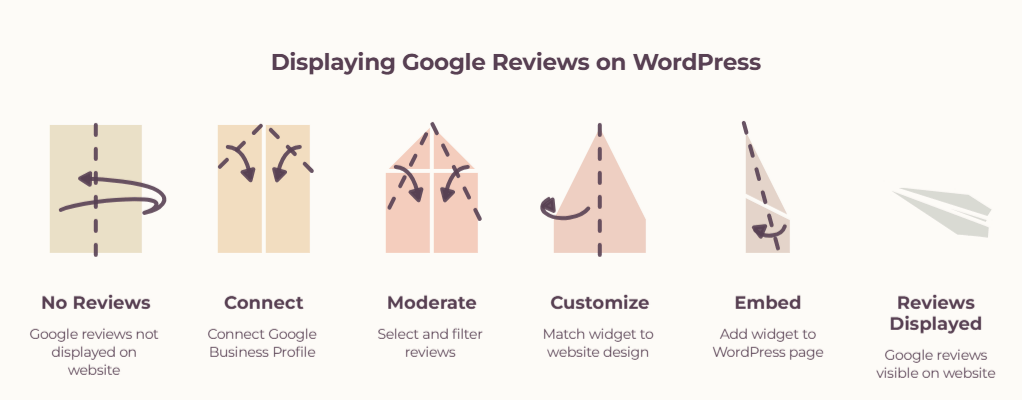
The general process is:
Connect → Moderate → Customize → Publish
Step 1: Connect Your Google Reviews
Create your widget and select Google Reviews as the source.
Depending on the setup, you can connect your Google Business Profile or search for a business location to collect reviews.
Step 2: Select and Moderate Reviews
Once the reviews are collected, review the content before publishing it on your website.
A review widget may provide moderation or filtering options that allow you to control which reviews are displayed.
This is particularly useful for businesses with multiple locations or a large number of reviews.
Step 3: Customize the Widget
The next step is to make the widget match your WordPress website.
Depending on the tool, you may be able to customize:
- Layout
- Fonts
- Colors
- Spacing
- Review cards
- Star ratings
- Background
- Review count
- Call-to-action buttons
For example, Taggbox offers layouts such as grids, lists, carousels, sliders, and rating badges for its Google Reviews widget.
Step 4: Add the Widget to WordPress
After customizing the widget, generate the embed code or shortcode provided by the platform.
In WordPress, you can generally add it through a supported plugin, shortcode block, Custom HTML block, or another compatible page-builder element.
The exact steps depend on the widget and WordPress setup you’re using.
Watch the Video: How to Embed Google Reviews on WordPress
Prefer watching a step-by-step tutorial?
Watch the video below to learn how to embed Google reviews on a WordPress website:
The video walks through the process of adding Google reviews to WordPress and can be useful if you prefer following the setup visually.
Method 3: Add Google Reviews Using Custom Development
For businesses with specific technical requirements, Google review data can also be integrated using APIs and custom development.
This approach can provide greater control over how reviews are retrieved and displayed, but it generally requires development knowledge and additional configuration.
For most small businesses and website owners, a ready-made review widget tool or WordPress plugin is simpler to maintain.
Where Should You Display Google Reviews on WordPress?
Adding reviews to your website is only part of the process. Placement also matters.
Consider displaying Google reviews in areas where visitors are already evaluating your business.
Homepage
Your homepage is one of the most visible places to display customer feedback.
A short review carousel or rating section can introduce social proof without taking up too much space.
Service Pages
If your business offers multiple services, consider adding relevant customer feedback to individual service pages.
For example, a dental clinic could display patient reviews on its dental treatment pages.
Product Pages
WooCommerce stores can use customer reviews near product information to give shoppers additional confidence before purchasing.
Landing Pages
If you’re running a campaign or paid advertising campaign, displaying relevant reviews on the landing page can provide additional context for visitors.
Contact Page
A small review section on your contact page can reinforce trust when visitors are deciding whether to get in touch.
Best Practices for Displaying Google Reviews on WordPress
Simply adding reviews isn’t enough. Make sure the widget is useful and fits naturally into your website.
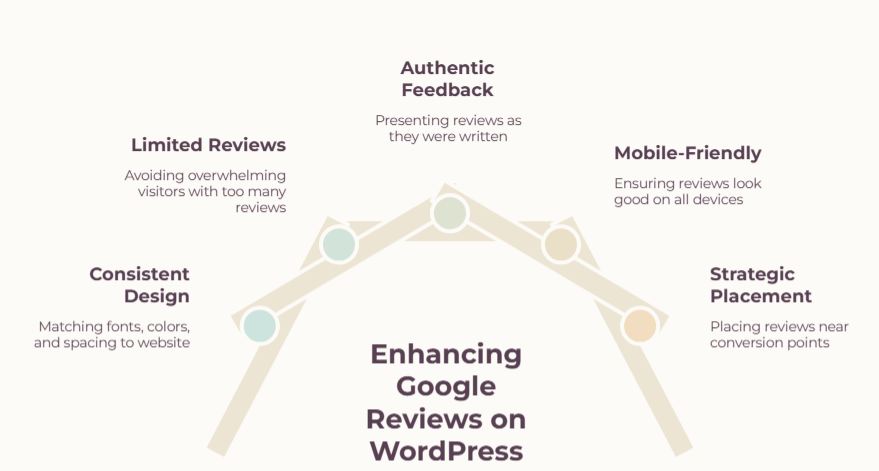
1. Keep the Design Consistent
Use fonts, colors, and spacing that match your existing website design.
A review section should feel like part of your website rather than a separate third-party element.
2. Don’t Display Too Many Reviews at Once
Showing every review can make the page unnecessarily long.
A carousel, grid, or selected review section can make customer feedback easier to scan.
3. Keep Reviews Authentic
Don’t rewrite customer feedback to make it sound better.
If you use a moderation feature, use it to manage relevance and presentation rather than misleading visitors about what customers actually said.
4. Make the Widget Mobile-Friendly
A large review grid that looks good on desktop may not work well on a smartphone.
Always check the widget on different screen sizes before publishing it.
5. Place Reviews Near Conversion Points
Consider placing relevant reviews close to areas where visitors can take action, such as:
- Buy buttons
- Contact forms
- Appointment forms
- Quote requests
- Service CTAs
This makes the feedback more useful at the decision-making stage.
Google Reviews Plugin vs. Manual Embedding
Not sure whether you need a plugin or another method?
Here’s a quick comparison:
| Method | Best For | Technical Knowledge |
| WordPress plugin | Easy WordPress integration | Low |
| Review widget | Custom layouts and easier management | Low |
| Custom API integration | Advanced functionality | High |
| Manually adding reviews | A small number of static testimonials | Low |
For a website that needs regularly updated reviews, a dedicated widget or plugin can be more practical than manually copying reviews.
Common Mistakes to Avoid
When adding Google reviews to WordPress, avoid these common issues:
Using Too Many Reviews
A huge review section can distract visitors from the main content. Keep the presentation focused.
Ignoring Mobile Design
Check how your review widget looks on mobile, tablet, and desktop.
Making Reviews Difficult to Read
Avoid tiny fonts, excessive animations, or layouts that force visitors to click through every review.
Adding Reviews Without Context
A review section works better when visitors understand what the reviews relate to. For example, place service-specific feedback near the relevant service.
Forgetting to Check Performance
Third-party widgets can add scripts and resources to a page. Test your page speed after installing a review widget and make sure the implementation doesn’t unnecessarily affect performance.
FAQs About Displaying Google Reviews on WordPress
How do I display Google reviews on my WordPress website?
You can display Google reviews on WordPress using a dedicated plugin, review widget, or custom integration. With a plugin or widget, you typically connect your Google Business Profile, customize the display, and add the widget using a shortcode, block, or embed code.
Can I add Google reviews to WordPress without coding?
Yes. Many Google review plugins and widget platforms offer no-code or low-code installation methods. You can usually connect your business, customize the review display, and add it to your WordPress page without writing custom code.
What is the best way to show Google reviews on a website?
The best method depends on your requirements. A WordPress plugin can be convenient for WordPress users, while a dedicated review widget can provide additional customization and review management features. Custom API development may be suitable for websites with specialized requirements.
Can I display Google reviews on my WordPress homepage?
Yes. You can add a Google Reviews widget to your homepage using a compatible WordPress plugin, shortcode, block, or embed method.


Leave a Reply